

Creator Studio
Manage your content schedule and track growth to build a viral digital brand.
chawodani made this on Mable.
Make your gameAbout Creator Studio
Manage your content schedule, discover new video ideas, and track your channel's growth to build a successful digital brand.
How to play
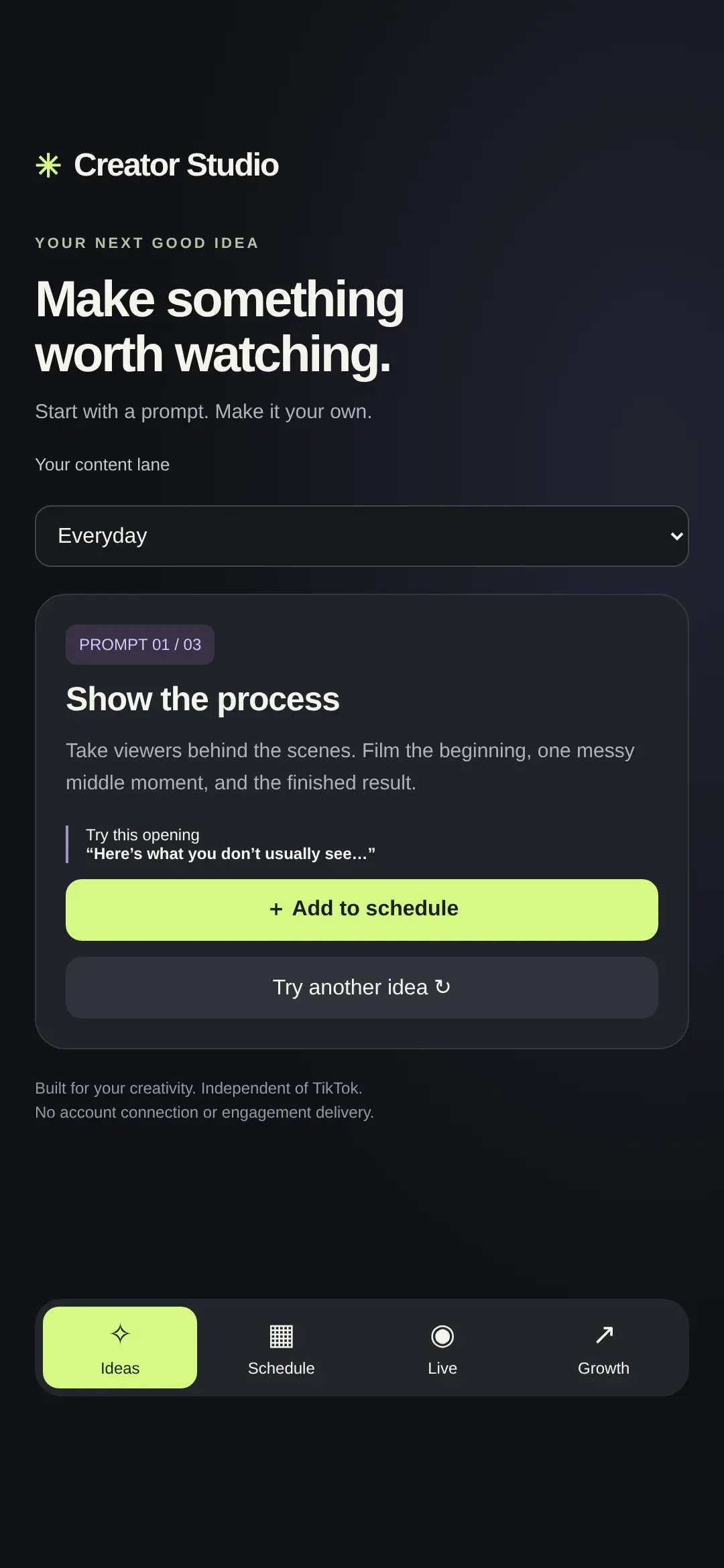
- Browse the Ideas tab to find video suggestions for your chosen content category.
- Add ideas to your Schedule and assign planned dates and times for each upload.
- Complete the five-step checklist in the Live tab before starting a streaming session.
- Enter your views, likes, and followers in the Growth tab to save a snapshot.
- Compare your latest metrics against previous entries to monitor your ongoing progress.
Controls
- Touch
- Tap the navigation buttons to switch tabs and use the on-screen keyboard for text.
- Keyboard
- Type your video titles, dates, and growth metrics using the standard keyboard keys.
- Mouse
- Click the bottom navigation bar to switch tabs and select form fields to type.
More about this game
Step into the shoes of a digital creator by managing your daily content workflow. Your goal is to plan a consistent schedule, prepare for live streams, and track your audience growth over time. The core loop involves browsing video concepts, scheduling uploads, completing pre-live checklists, and logging your views and followers to compare against previous snapshots. There is no traditional end state; you simply keep planning and tracking as your virtual brand expands.
Tips
- Use the Ideas tab to cycle through three specific concepts per category, such as Everyday or Education, to keep your schedule full.
- Always mark your scheduled videos as posted once completed to keep your active planned count accurate at the top of the screen.
- Save your growth snapshots regularly; the game tracks your current numbers against the immediate previous entry to show your exact follower changes.
FAQ
- How do I add a new video to my schedule?
- You can either type a custom title directly into the Schedule tab and click add, or use the Ideas tab to automatically send a concept to your plan.
- What happens when I finish the live checklist?
- Checking off all five preparation tasks marks you as ready to stream. You can press the reset button afterward to clear the board for your next session.
- Does the game automatically track my video views?
- No, you must manually enter your video views, likes, followers, and peak live viewers into the Growth tab to save a snapshot of your progress.


